![CardSmart Logo (1) (1).png]](https://www.help.cardsmart.io/hs-fs/hubfs/CardSmart%20Logo%20(1)%20(1).png?height=40&name=CardSmart%20Logo%20(1)%20(1).png)
You can upload and export batch files from the Batches tab in CardSmart.
To upload and process a batch file:
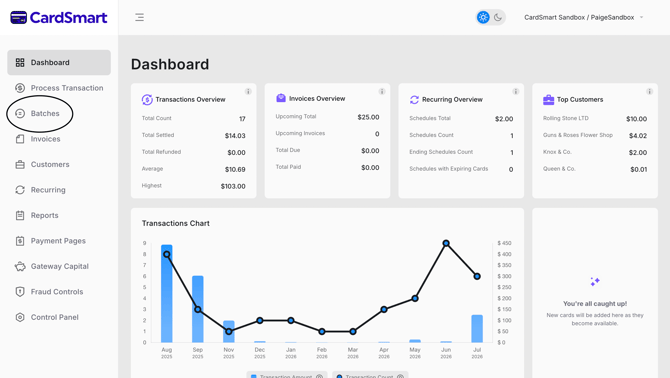
- Navigate to the Batches tab.
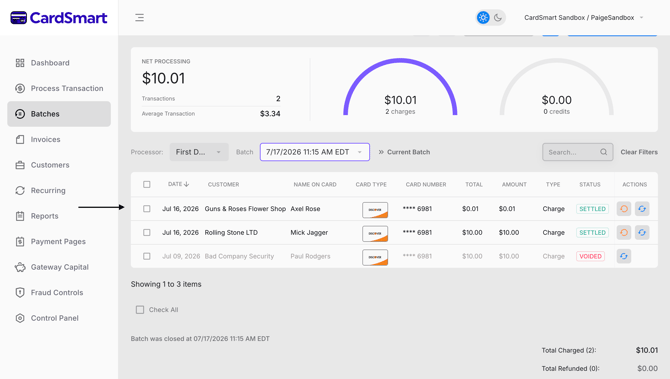
- Download the batch report that you want to use.
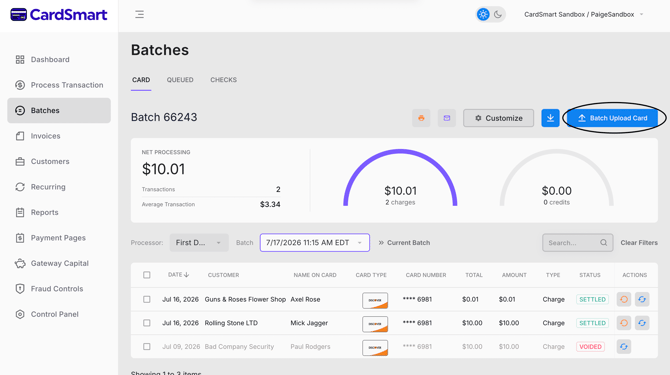
- Select Batch Upload Card at the top of the page.
- Upload the completed CSV file.
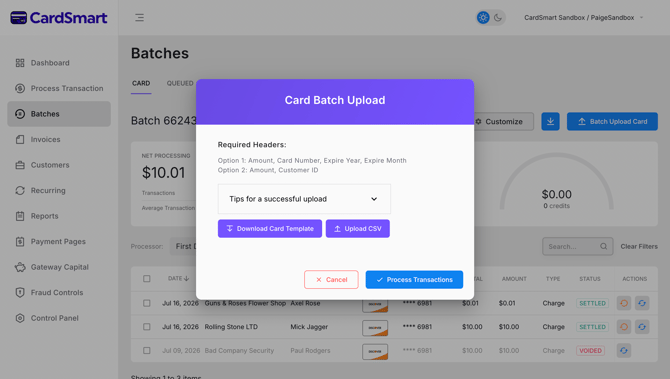
- Process the uploaded transactions.
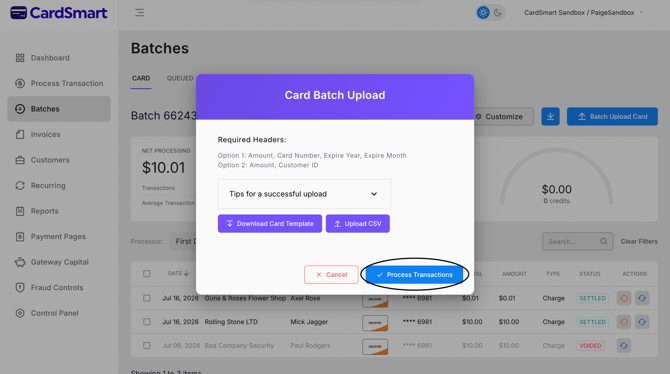
Once the transactions have been processed, the batch is ready to be exported.
CSV File RequirementsYour CSV file must include one of the following sets of required headers:
Option 1
- Amount
- Card Number
- Expire Year
- Expire Month
Option 2
- Amount
- Customer ID
Including the required headers ensures that your batch file can be uploaded and processed successfully.